
Use the Search control in the top bar when you know what you are looking for but not where it is stored.
What Search can find
- Artwork records
- People and their contact details
- Sales and payment references
- Invoices, receipts and other sale documents
- Lookbooks
- Private prices
- Places and settings inside Studio Operations through Go to
- Matching Support guides through Help
Search for something
- Choose Search in the top bar.
- Enter a name, artwork title, inventory reference, email address or other useful detail.
- Review the result groups. Use Everything or choose a narrower group such as Works, People, Sales, Go to or Help. Once you type, groups with no matches are hidden.
- Open the result you need.
Search also understands useful phrases such as available paintings, sold to followed by a person’s name, a month such as sales last July, or a price such as works under $2,000.
If a long search returns nothing, try the most distinctive name, reference number or word on its own. Search only reads records in your own studio and does not change them.
Go straight to a page or setting
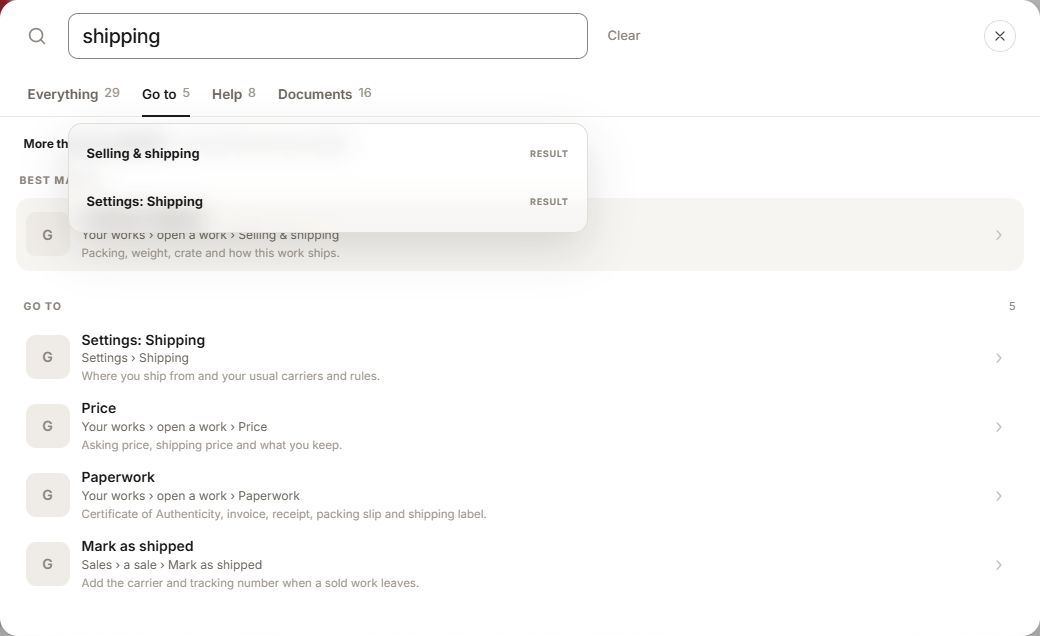
Type an everyday word such as commission, shipping or backup, then choose Go to. Open the matching destination to jump to that place in Studio Operations, including a Settings section or a tab where a direct destination is available. For an artwork-specific destination, you may first need to choose the work. Search can handle small typing mistakes; if no useful match appears, try a shorter word.
Find a Help guide
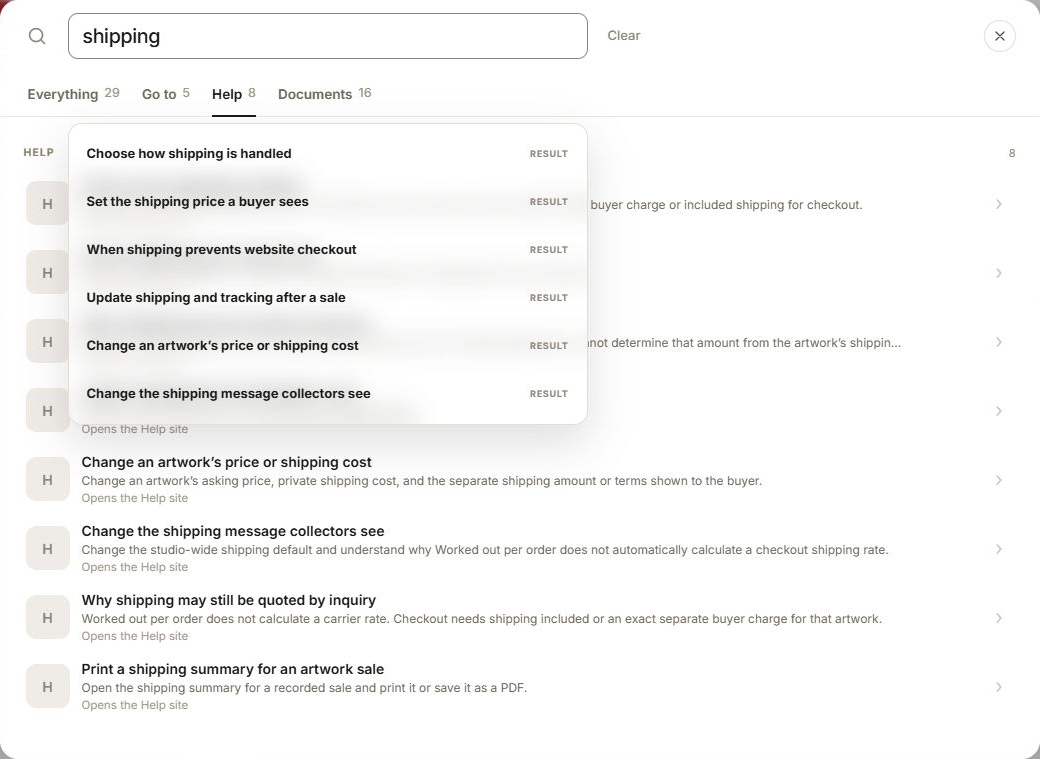
Choose Help to see matching Support guides. Select a guide to open it in a new browser tab while keeping Studio Operations open.
Clear or close Search
The gray Clear button removes your search words so you can start again. The round gray close button closes Search. Suggestions appear beneath the search area in a translucent list; a gray hover highlights the suggestion under your pointer. Choosing a result opens it; typing or clearing a search does not change your records.